Building an agent
A field-by-field tour of the agent builder — instructions, model, inputs and outputs, and parameters.
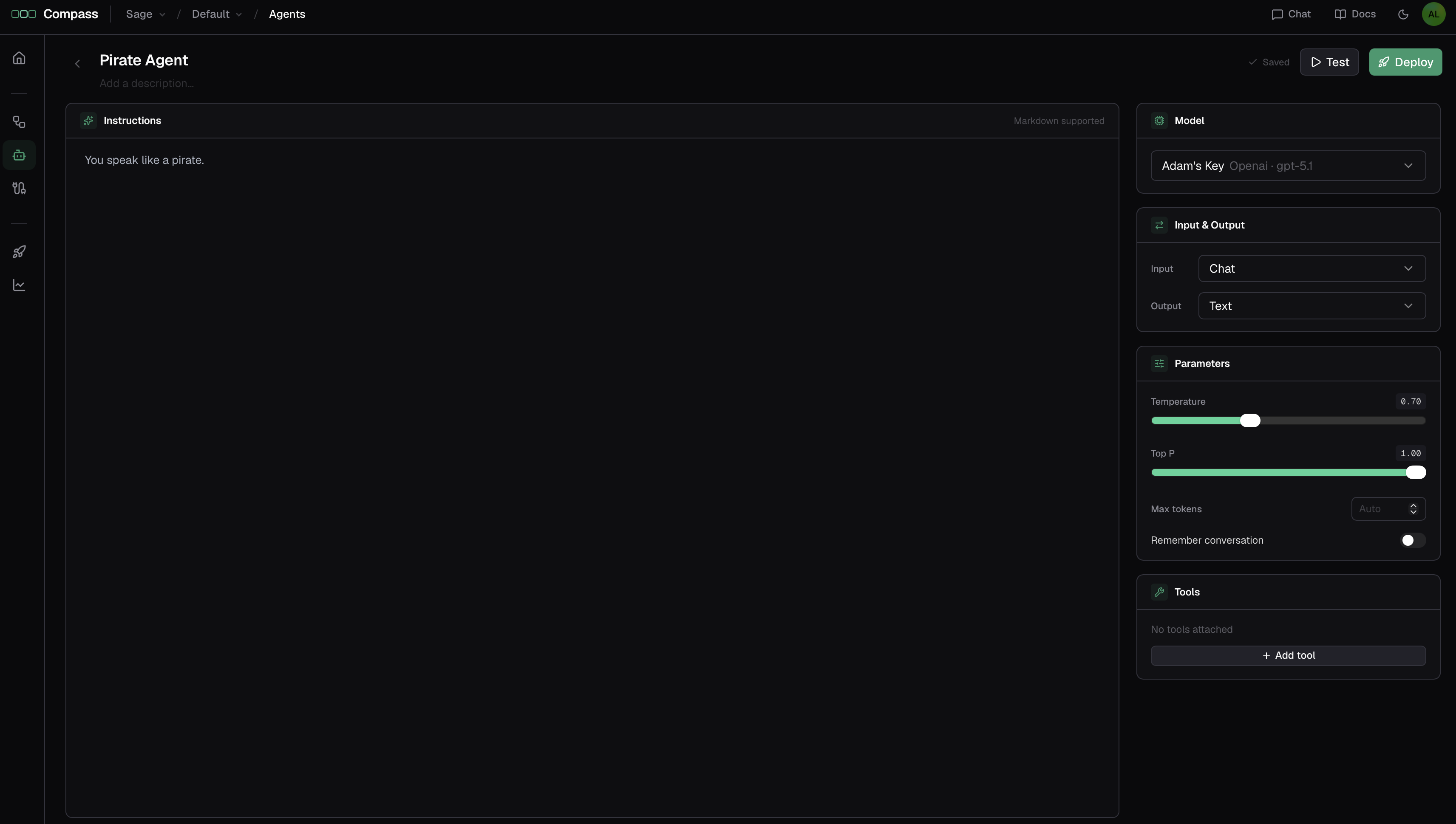
This page walks through every setting in the agent builder. To follow along, open Studio → Agents and click New Agent — this creates an agent and drops you into the builder.
Your work auto-saves
The builder saves changes to a draft as you go; there's no Save button. An indicator shows when you have unsaved edits. Drafts aren't live until you deploy — so experiment freely.
Name and description
Set a clear name and a short description in the builder's header. These identify the agent everywhere it appears — in the agents list, in the tool picker when another agent or workflow uses it, and in execution traces.
Instructions
Instructions are the agent's system prompt — the single most important setting. This is where you tell it what it does, how to behave, what to prioritize, and any rules to follow. The field is a Markdown editor, so you can use headings, lists, and emphasis to structure longer prompts.
Good instructions are specific about the agent's job, its tone, and what a good result looks like. For example:
You are a concise support triage assistant. Given a customer message, classify its urgency, summarize the issue in one sentence, and suggest the next action. Never promise a refund.
Model
Under Model, choose the provider connection the agent thinks with. The list shows your project's provider connections and the models they offer.
Need a model first?
An agent can't run without a model. If the list is empty, add a provider connection first — see Connect a provider.
Input and output
An agent's input mode and output mode define the shape of what goes in and what comes out.
Input mode
- Chat — the agent takes free-form text. Best for conversational use, such as Compass Chat.
- Object — the agent takes a structured object whose fields you define. Best when the agent is called by another agent, a workflow, or the API with specific inputs. Fields can be typed File (or a list of File) to accept attachments — see Files & attachments.
Output mode
- Text — the agent returns free-form text.
- Structured — the agent returns a typed object matching a schema you define, so whatever consumes the result gets predictable, named fields.
Use structured output whenever something downstream — a workflow step, another agent, or your own code — needs to read specific values out of the response rather than parse prose.
Parameters
Parameters tune how the model generates its response:
- Temperature (0–2) — higher is more varied and creative; lower is more focused and repeatable. A middle value is a sensible default.
- Top P (0–1) — an alternative way to control variability (nucleus sampling).
- Max tokens (optional) — a cap on how long the response can be.
If you're unsure, leave the defaults and adjust only if responses are too random or too rigid.
Conversation history
Turn on conversation history to let the agent remember earlier turns in a conversation, so it can answer follow-ups in context. Leave it off for one-shot tasks where each execution is independent. It matters most for agents used conversationally, such as in Compass Chat.
Batching
When the agent's input is bound to a list, Run once per item of a list input fans the agent out — one call per item, in parallel, with an ordered list of results back. This has its own page:
Tools
The Tools panel is where you grant the agent the ability to act — call integrations, run workflows, or hand off to other agents. This has its own page:
Validate and deploy
When you're happy with the agent, test it, then Deploy to freeze the draft into a numbered version and publish it live. The deploy step validates the agent first and flags anything that would stop it from running — a missing model, or a tool whose connection isn't set. See Versioning & deployment.