Workflows overview
What a workflow is, the canvas you build it on, and how building works.
A workflow is a graph of steps that turns an input into an output. You build it visually on the canvas: drop nodes onto the board, wire them together so the output of one feeds the next, and the result is a pipeline you can deploy and run.
Workflows are the right tool when you want to lay out the steps yourself — fetch some data, run an agent over it, transform the result, call an API — with the order and connections made explicit.
Workflows and agents
Workflows and agents are the two ways to build in Compass, and they're equal partners. An agent is one AI worker that decides how to use its tools; a workflow is an explicit graph of steps you arrange. They also combine — a workflow can contain agents as steps, and an agent can call a workflow as a tool. Reach for a workflow when you want explicit, multi-step structure.
The canvas at a glance
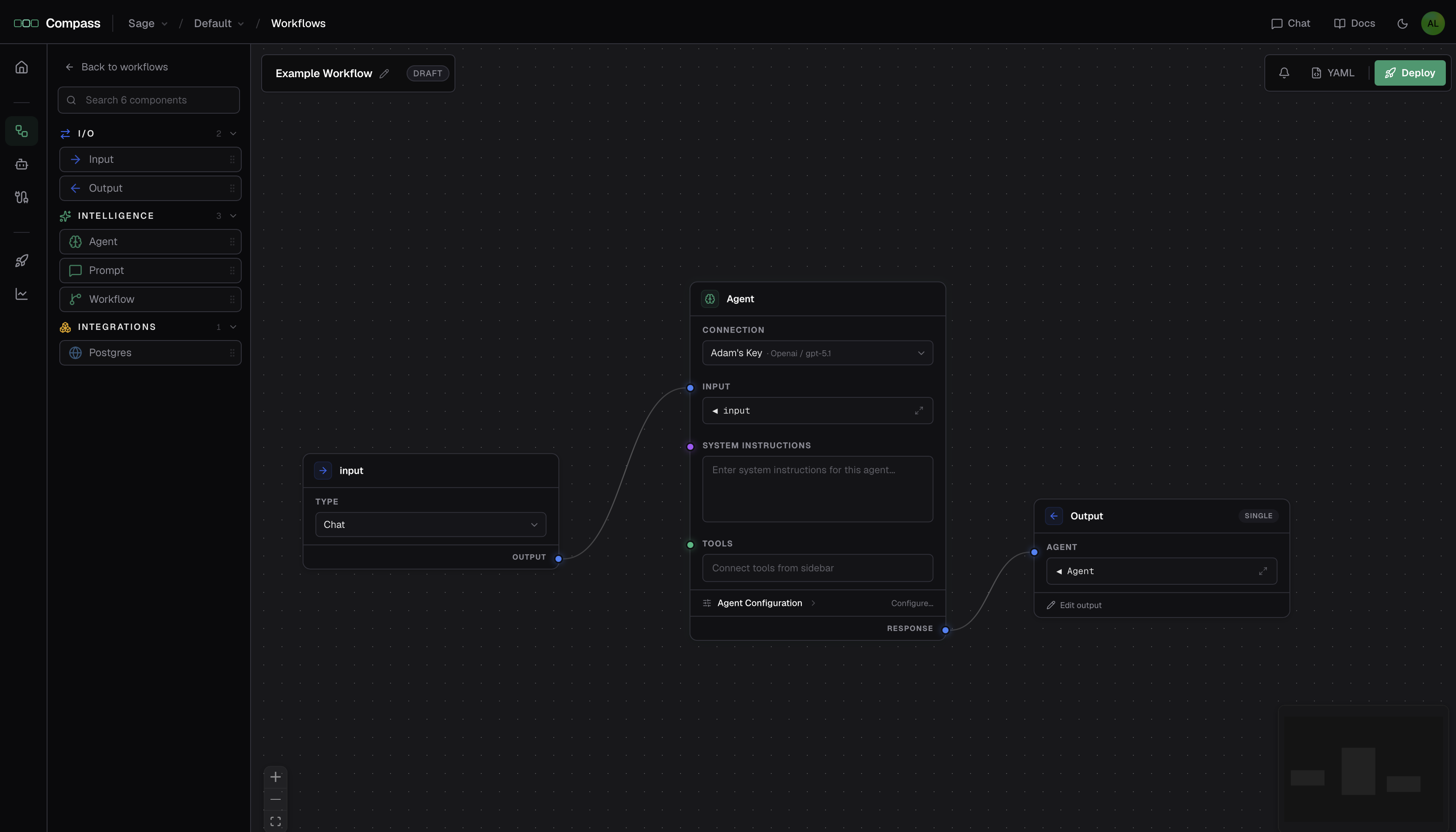
The workflow editor has four parts:
- Node palette (left) — a searchable catalog of the nodes you can add, grouped by kind.
- Canvas (center) — the board where you place nodes and draw connections.
- Toolbar (top) — the workflow's name and status, an unsaved-changes indicator, the validation (Issues) panel, a YAML view of the definition, and the Deploy button.
- Side panel (right) — opens in context to edit a node's settings, bindings, schema, or tools.
How building works
Add nodes
Drag nodes from the palette onto the canvas, or double-click to drop one in.
Wire them together
Connect each node's output to the next node's input to define the flow of data. See Wiring & data binding.
Configure each node
Select a node to set it up in the side panel — pick a model, choose an integration action, write a template, map its inputs.
Watch for issues
The editor validates as you go and lists problems in the Issues panel. Errors block deployment; warnings don't.
Deploy
When it's valid, Deploy freezes the draft into a numbered version and publishes it live. See Versioning & deployment.
Your work auto-saves
The canvas continuously saves to a draft; an indicator shows unsaved changes. A draft isn't live until you deploy, so you can leave and come back to a work-in-progress safely.